
Enrolling devices
There are three ways to get the agent onto an employee’s Mac, all issued from the Employees page. All three produce the same result — a device enrolled to that employee, under their policy.
| Path | Best for | What you do |
|---|---|---|
| Install link | Most teams without MDM, remote staff | The console mints a per-employee URL; the employee opens it and double-clicks a standard installer |
| Enrollment token | One-off / hands-on installs | The console shows a one-time token; you (or IT) paste it during a manual install |
| MDM profile | Fleets managed by Jamf / Intune | The console exports one .mobileconfig per employee; your MDM delivers it and the device enrolls itself |
Install links (no MDM needed)
Section titled “Install links (no MDM needed)”Click Create install links, pick the employees, and create:
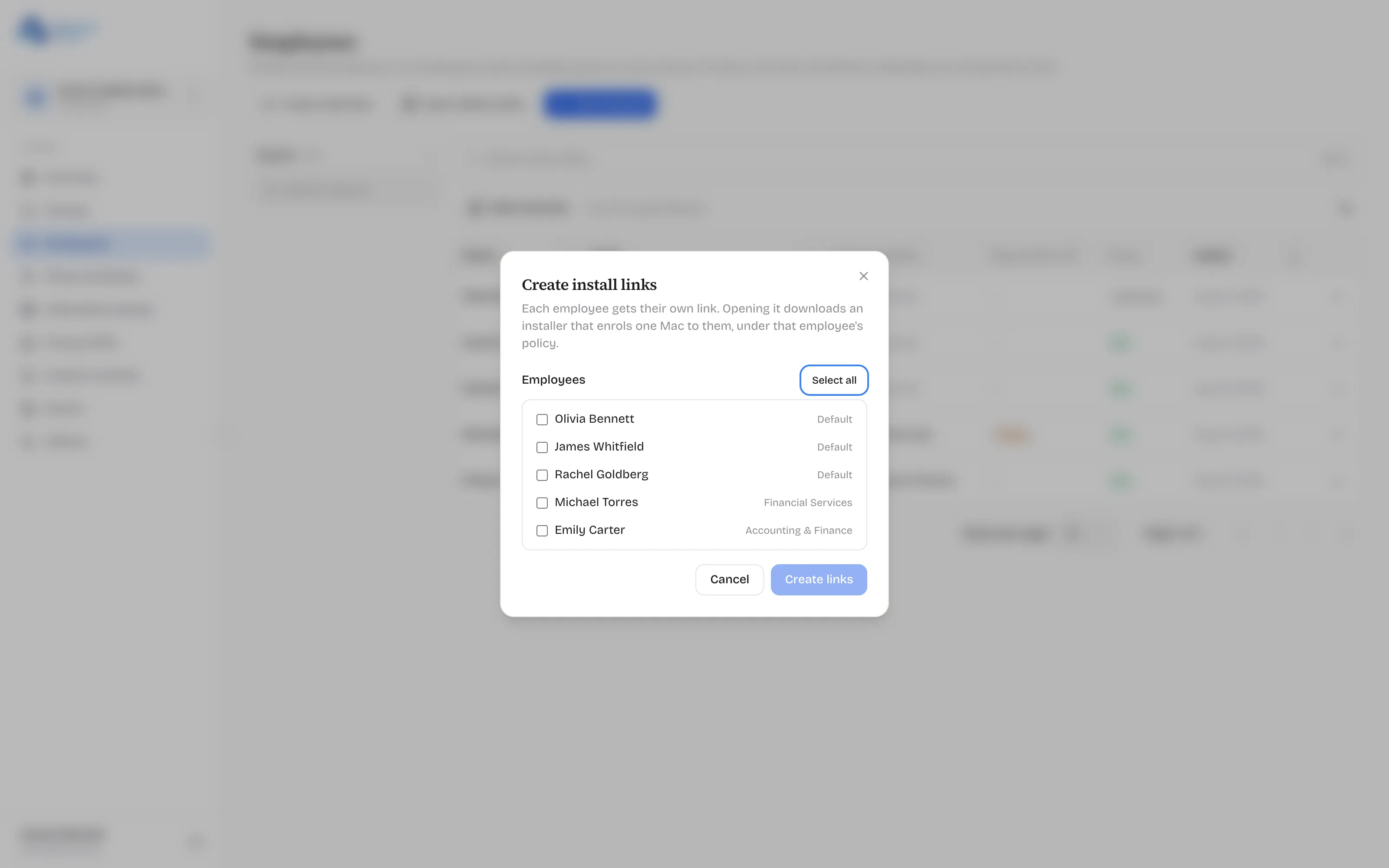
Each selected employee gets their own URL. Copy the links immediately — they are displayed once. Send each link to its employee.
What the employee experiences: opening the link downloads a small kit — a notarized macOS installer package, their one-time token, and a README. They double-click the package and enter their Mac password; there is no Terminal and nothing to type. The installer then fetches the current agent release in the background, verifies its release signature, checksum, and Apple Developer ID before anything installs, and enrolls the Mac to that employee. Links expire and can be revoked from the Employees page; a used link cannot be reused.
The full walkthrough — what the admin does, what the employee sees, the few-minutes background gap, and how every failure surfaces — is in Install links, end to end.
Enrollment tokens (manual installs)
Section titled “Enrollment tokens (manual installs)”From an employee’s row menu, Generate token. The token enrolls one device, then expires. It is shown once. Use this when IT is installing the agent by hand and just needs the credential to paste in.
MDM profiles (Jamf / Intune fleets)
Section titled “MDM profiles (Jamf / Intune fleets)”Click Export MDM profiles, select employees, and download:
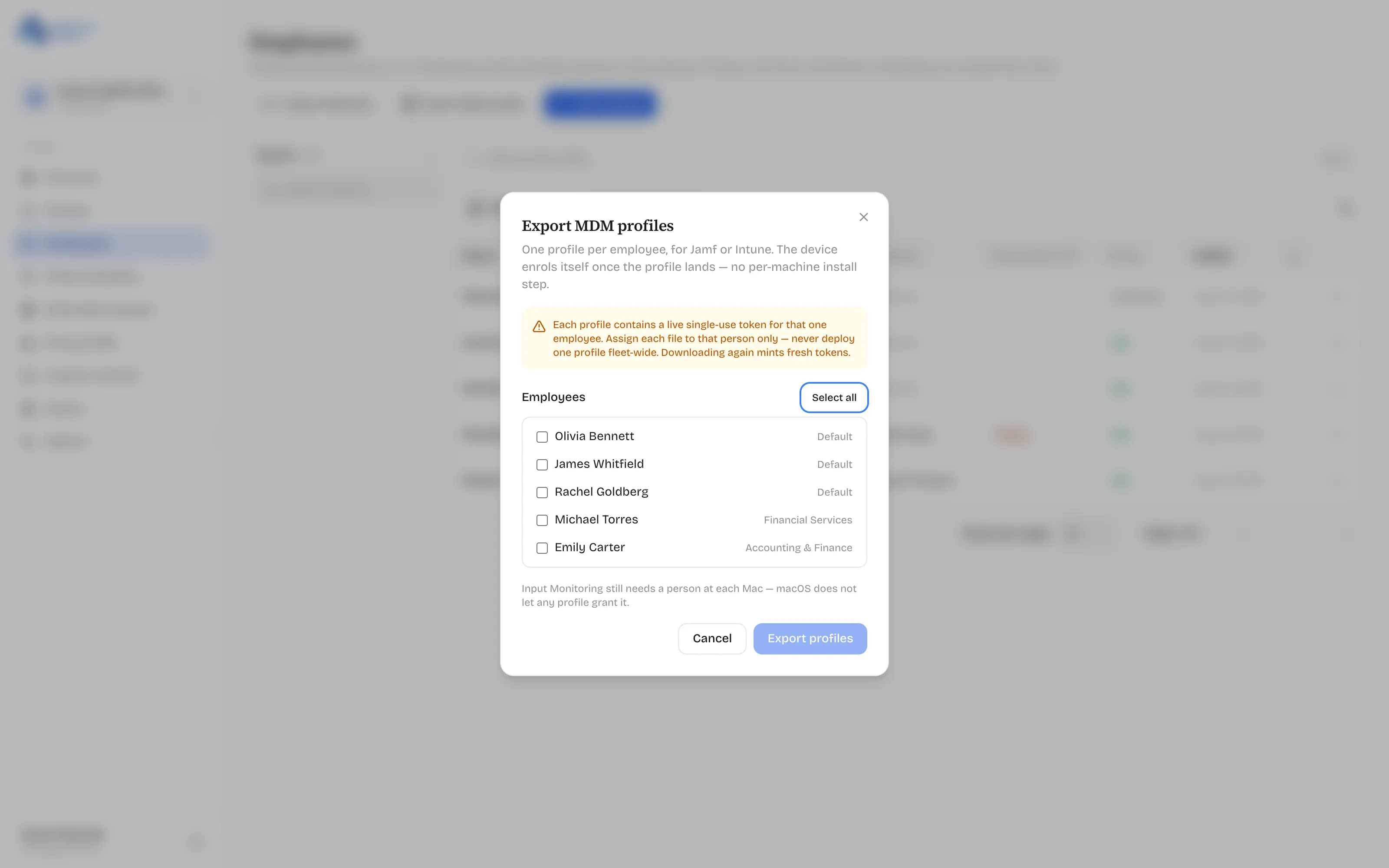
You get a zip with one .mobileconfig per employee (filename = their
email) and a README with per-MDM deployment steps. Assign each profile to
that employee’s Mac (or their user group) in your MDM — do not deploy
one profile fleet-wide, because each contains that one person’s single-use
enrollment token.
Order does not matter: if the profile lands before the agent package, the agent enrolls itself within a few minutes of arriving. The profiles are device-scoped on purpose — a user-scoped profile would be readable by the person being monitored, and these contain a live credential. More detail in MDM profile types.
The one step no automation can do: Input Monitoring
Section titled “The one step no automation can do: Input Monitoring”macOS does not allow the Input Monitoring permission to be granted by any profile or MDM. Every machine needs a human to switch it on once (System Settings → Privacy & Security → Input Monitoring). Until then the agent runs in a reduced mode and reports itself as degraded rather than pretending to full coverage. Build this into your rollout comms: one settings toggle, one time, per machine.
Verify
Section titled “Verify”The device appears on the Devices page within a few minutes of enrollment, reporting its platform, agent version, and policy state. What every column and badge means is covered in Device statuses.