
Employees
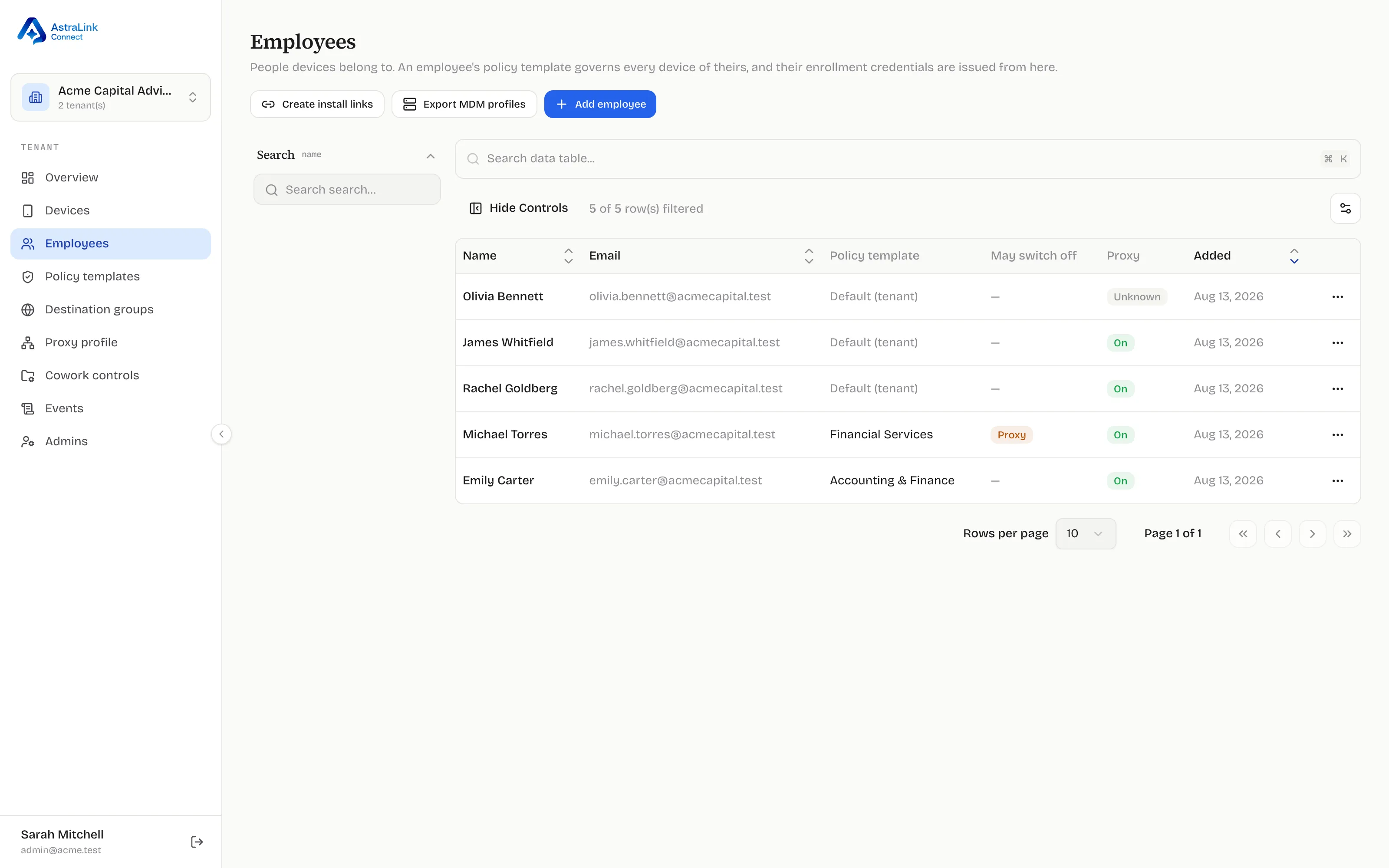
The Employees page is the anchor of the whole system: devices belong to employees, policies follow employees, and enrollment credentials are issued from here.
Add the person
Section titled “Add the person”Click Add employee and enter their name and work email. The email labels their enrollment credentials and MDM profiles, so use the address your staff will recognize.
Assign a policy template
Section titled “Assign a policy template”From the row menu (⋯), choose Assign template. Every device belonging to
this employee enforces the assigned template’s latest version,
automatically — publishing a new version later reaches all of their devices
with no further action. An employee with no assignment uses the
organization’s Default template; the Policy template column always
shows what actually governs each person, including the Default (tenant)
fallback.
See Policy concepts for how templates and versions work.
Decide their tray allowances
Section titled “Decide their tray allowances”Also from the row menu: User controls. Two per-person switches:
- May switch off — whether the employee can pause DLP protection from the menu-bar tray.
- Proxy toggle — whether the employee can turn the traffic proxy off and on themselves.
Both default to off: a permission must never appear by omission. These are trust decisions about a person, not policy content — which is why they live here and not inside a template. Every change is recorded in the audit trail, and any pause an employee later takes is itself an audited device event. The May switch off and Proxy columns show current allowances at a glance.
Next: get their Mac enrolled
Section titled “Next: get their Mac enrolled”Enrollment credentials — install links, one-time tokens, and MDM profiles — are all issued from this page. See Enrolling devices.